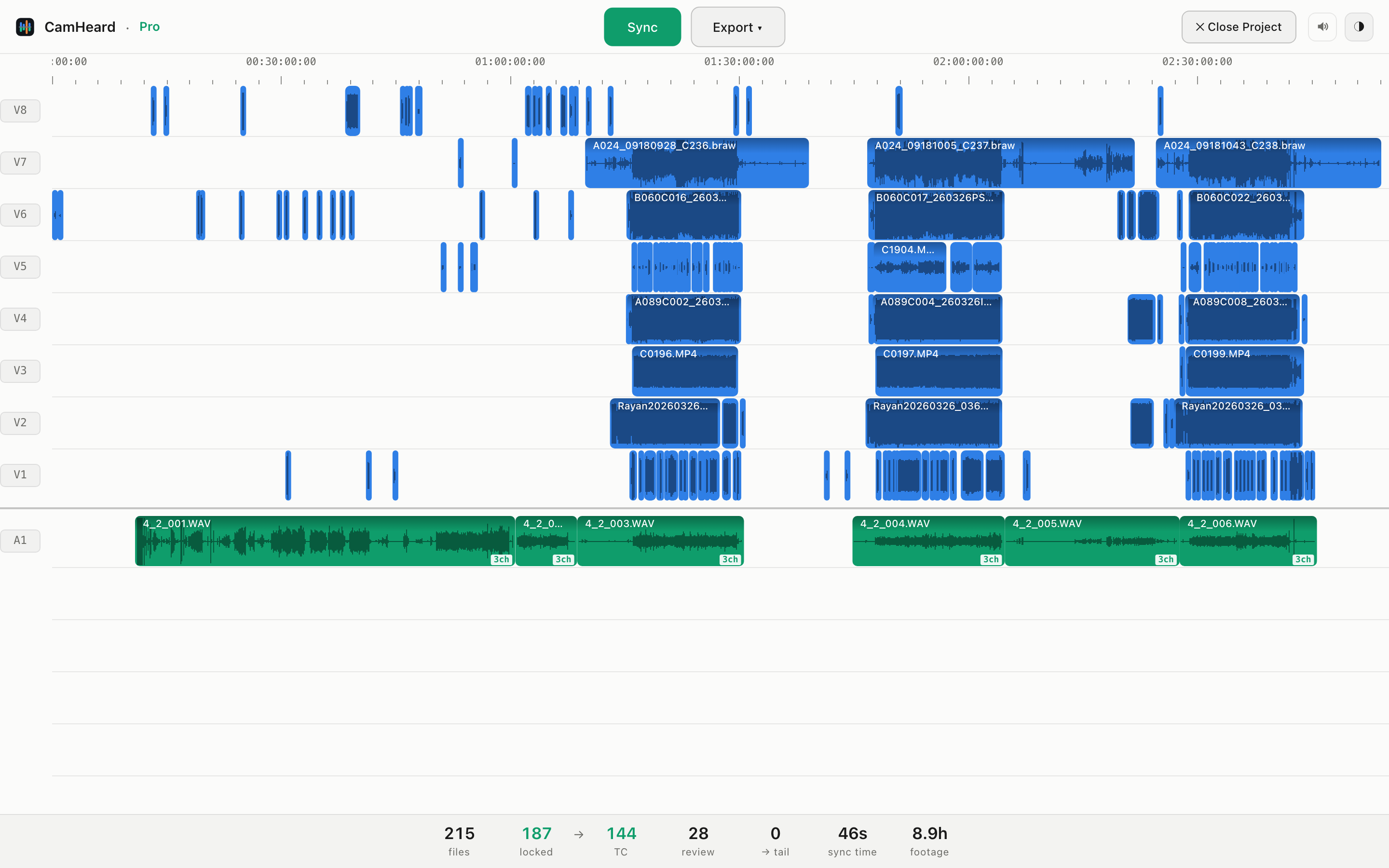
The main window
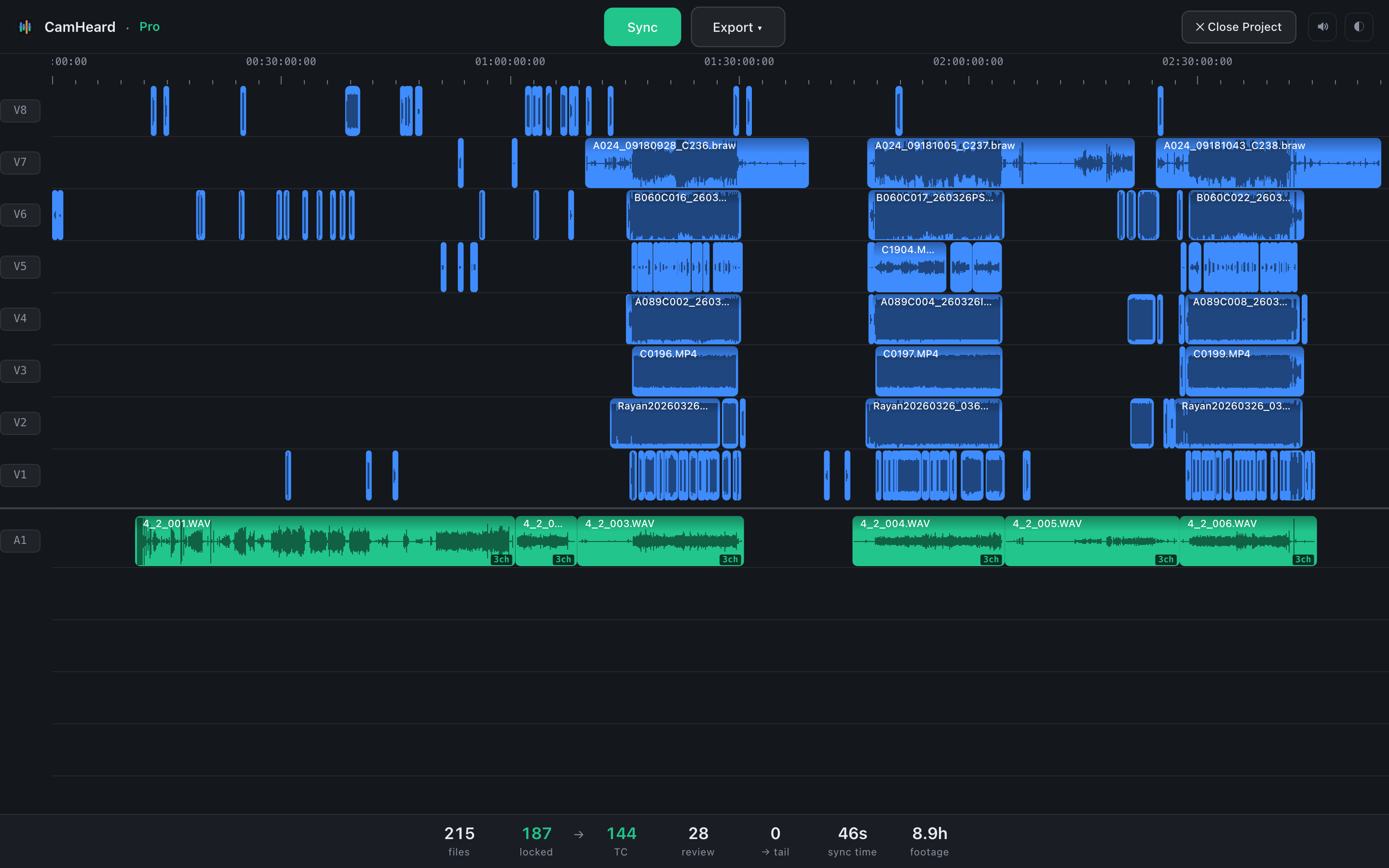
The window has three parts: the top bar with buttons, the timeline in the middle and the status bar at the bottom.
The top bar

| Element | What it does |
|---|---|
| ✕ Close Project | Clears the timeline for the next shoot. It only appears when a project is loaded. |
| The licence badge | Trial · 9d, Free · Upgrade or the edition name. See the licence. |
| Sync | Starts the sync. While it runs the button becomes ■ Stop sync, and the same button stops it: the timeline stays exactly as it was before you pressed. |
| Export ▾ | The export menu: three editors, two options and the problem report. Active only after a sync. |
| TC | Appears when two or more devices share a jammed timecode. Turns on the mode that places the footage by that timecode alone. See Running the sync. |
| ↑ Update | Appears when a newer version is out. Press it to download; the label then becomes ↻ Restart to update. See Updates. |
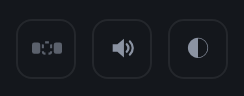
| Speaker | Turns the sound at the end of a sync on and off. The choice is remembered. |
| Unplaced clips | Puts the clips with no proof on their by-number places instead of a pile at the end. Appears only where such places exist. |
| ◐ | Switches between the dark and the light theme. |
The order switch in the top bar
The Unplaced clips in shooting order switch lives in the TOP BAR, next to the sound and the theme: it used to be a strip above the timeline, and since 0.3.55 it is a button. It is there only when the project has clips for which a by-number place exists. What it does is on the Clips with no proof page.
The timeline
On the left are the track labels: V1…V5 for video, A1…A5 for sound. As in an editor, V1 sits lowest among the video tracks. Above is the time ruler with timecode. Every camera is on its own track, the recorder below, one track per channel. Colours, marks and tooltips are described on the Reading the timeline page.
The status bar

Before the sync it counts what came in. During the sync it shows the stage and the percentage. After the sync there are six numbers, each described on the Status bar page.
The light theme