Final Cut Pro Synchronize Clips not working: causes and fixes
In Final Cut Pro, Synchronize Clips fails in one of two ways. Either it is greyed out, or it runs and the clips stay out of sync. Apple's guide says that if no sync points can be found, the clips are synced at their respective starting points. So a synchronized clip can exist and still be wrong.
Below is a table of symptoms, causes and fixes. Then come the steps for one camera and for several. Facts about Final Cut Pro come from Apple's Final Cut Pro User Guide. Tips from Apple Community and Reddit are marked as common advice. The last part is for shoots with dozens of clips.
Symptoms, causes and fixes
| Symptom | Why | What to do |
|---|---|---|
| Synchronize Clips is greyed out | Common advice: the clips are selected in a project, not in the browser. Apple's steps start in the browser. | Select the camera clip and the recorder file in the browser, then choose Clip > Synchronize Clips. |
| The synchronized clip is out of sync, as if lined up at the start | Apple's guide: if no sync points can be found, the clips are synced at their respective starting points. | Check that Use audio for synchronization is on and that both clips recorded the same moment. Or add a marker at the clap in each clip and sync again. |
| One recording never syncs by sound | Apple's guide: some audio recordings are not suited for use with this feature. | Let every camera record its own sound. Apple's guide advises recording audio on every camcorder and recording device, and says clear recordings give the best results. |
| A recorder file will not match the camera | Worth checking: the recorder may be set to 44.1 kHz while the camera records at 48 kHz. | Check the sample rate of both files. If they differ, convert the recorder file to 48 kHz and try again. |
| Final Cut Pro is busy for a long time while it syncs | Apple's guide: the audio option may result in long processing times during which Final Cut Pro is not available for editing. | Sync smaller batches, scene by scene. |
| A multicam clip puts cameras in the wrong angles | Apple's guide: with Angle Assembly set to Automatic, Final Cut Pro creates the angles itself. Common advice: two cameras with the same metadata land in one angle. | Set Camera Angle or Camera Name for every clip in the inspector. Then choose that field in Angle Assembly. |
| Timecode is not offered as a sync method | Apple's guide: the Timecode option is not available when the drop frame patterns in the selected clips don't match. | Sync by audio instead. |
The rows marked Apple's guide come from these pages of the Final Cut Pro User Guide: syncing audio and video, automatic audio sync, creating multicam clips and multicam editing tips. Common advice comes from Apple Community and r/finalcutpro.
Sync by sound in Final Cut Pro, step by step
One camera and a recorder. This is the most common case. Use Synchronize Clips.
- In the browser, select the camera clip and the recorder file.
- Choose Clip > Synchronize Clips, or press Option-Command-G.
- Make sure Use audio for synchronization is selected. To mute the camera's own sound in the result, select Disable audio components on AV clips.
- Click OK. A synchronized clip appears in the browser. Play it through before you cut.
Several cameras and a recorder. Use a multicam clip.
- In the inspector, give every clip of one camera the same Camera Angle or Camera Name.
- In the browser, select all camera clips and recorder files.
- Choose File > New > Multicam Clip, or Control-click the selection and choose New Multicam Clip.
- Click Use Custom Settings. Set Angle Assembly to Camera Angle or Camera Name, and keep Use audio for synchronization selected.
- Click OK. If one angle is off, open the multicam clip in the angle editor and use Sync Angle to Monitoring Angle on it.
When the sound will not match. Mark the sync point by hand. Add a marker at the same moment in every clip, such as the clap. Apple's guide says Final Cut Pro looks for sync points such as markers you have added.
When there are dozens of clips
Everything above works on a selection you prepare. Each camera needs its angle, and each result a check. With a few clips that is quick. With dozens of files from several cameras and recorders, the preparation grows with every file.
With CamHeard there are no labels to set and no selection to build. It is an app for macOS and Windows that syncs cameras and recorders by sound. Final Cut Pro gets a ready project. The sync runs in CamHeard, so Final Cut Pro stays free while it works.
- Copy the shoot as usual: one folder for the shoot, with a folder for each camera and each recorder inside.
- Drag the shoot folder onto the CamHeard window and press Sync.
- Choose Export, then Final Cut Pro, and save
CamHeard_sync_FCP.fcpxml. - In Final Cut Pro, choose File > Import > XML… and pick that file. An event appears with a project of the same name, and the media links from your folders.
Better not to mix files from different cameras or recorders in one folder. With a folder per device, devices that were recording at the same time land on separate tracks.
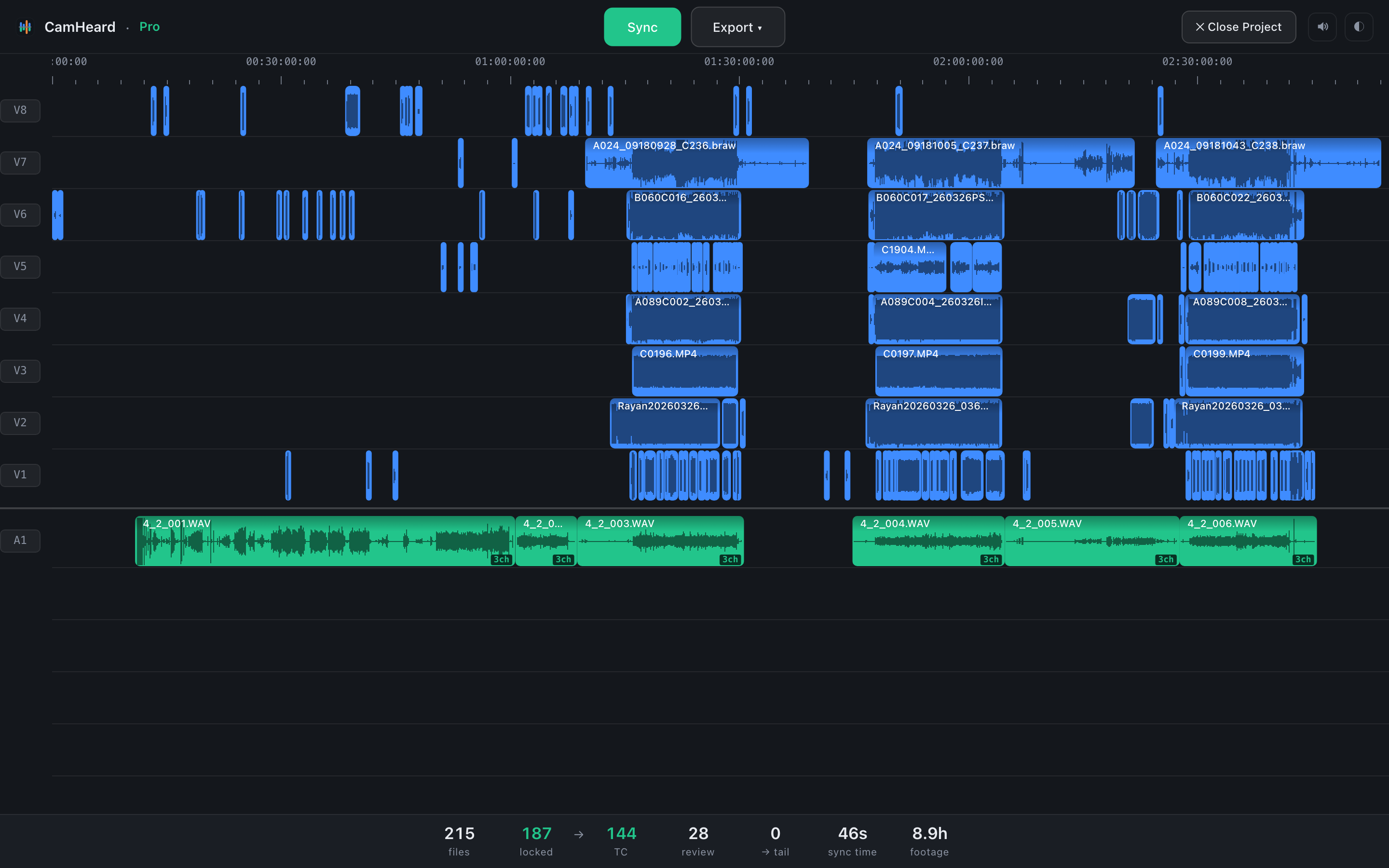
One real shoot in CamHeard: 215 files, 8 cameras and a recorder, 8.9 hours of footage.
Clips that could not be synced arrive with the role Not Synced, so they do not pass for synced clips. You pick the colour for that role once, in the Timeline Index under Roles, and the library keeps it. No file is lost: unsynced clips go to the end of the timeline. Your files on disk are not changed.
Worth knowing. Final Cut Pro does not import Blackmagic RAW or old camcorder files such as .mpg and .mod, and one such file would break the whole import. So CamHeard leaves them out of the Final Cut Pro export. For BRAW angles, use the DaVinci Resolve export.
If the recorder has three or more channels, its tracks hear the first channel after the import, so assign the channels on the tracks by hand. The Matching timecode option does not apply to Final Cut Pro.
CamHeard 0.4.35 synced the shoot in the picture above in about a minute on a MacBook Pro with M3 Max. The more you shot, the longer it takes.
CamHeard runs on macOS 15 or later with Apple silicon, and on Windows 10 or 11, 64-bit. The first 14 days are the full app, with no card and no account. After that, projects up to 20 clips stay free. A licence costs $15 a month, $144 a year or $249 for life.
Frequently asked questions
- How do I synchronize clips in Final Cut Pro?
- Select the clips in the browser and choose Clip > Synchronize Clips, or press Option-Command-G. Keep Use audio for synchronization selected and click OK. For several cameras, choose File > New > Multicam Clip instead.
- Why is Synchronize Clips greyed out in Final Cut Pro?
- The common advice is to check where the clips are selected. Apple's steps start in the browser, so select the clips there, not in a project.
- Why are my synchronized clips still out of sync?
- Apple's guide says that if no sync points can be found, the clips are synced at their respective starting points. Check that both clips recorded the same moment with clear sound, or add a marker at the clap in each clip and sync again.
- Why can't I edit while Final Cut Pro syncs?
- Apple's guide warns that syncing by audio may result in long processing times during which Final Cut Pro is not available for editing. Syncing in smaller batches keeps each wait shorter.
- Can CamHeard give Final Cut Pro a synced project?
- Yes. Choose Export, then Final Cut Pro, and save the file. In Final Cut Pro, File > Import > XML… opens it as an event with a project of the same name. Clips that could not be synced arrive with the role Not Synced.
Try it on your last shoot. Your own footage is the most honest test. The first 14 days are the full app, no card, no account.
Download CamHeard freemacOS 15+ · Apple silicon | Windows 10/11 64-bit